

.webp)
Post Summary
A store manager at a growing retail operation builds the weekly schedule in a shared Google Doc every Sunday. Names, shifts, times. Typed in a table by hand. It works. Until it does not.
A formula error means one employee is double-scheduled. Another is missing entirely. The manager does not catch it until Tuesday morning.
That is not a carelessness problem. It is a structure problem.
A properly built Excel schedule template uses formulas, formatting, and visual cues to catch errors before the schedule goes out. This article gives you two things: a free downloadable template you can use today, and a step-by-step tutorial for building one from scratch.
.webp)
.svg)

Priced on per user or per location basis
Available on iOS, Android and Web


What to include in an employee schedule template
Before you build anything, know what a complete schedule template actually needs. Most managers skip one or two of these and wonder why the schedule keeps breaking.
Five components. All of them required.
Employee and role identification
Every row must clearly show who is scheduled and in what role.
Knowing four people are working Saturday afternoon is not the same as knowing a shift lead, two servers, and a host are working Saturday afternoon. One is a headcount. The other is a coverage picture. You need the coverage picture.
Shift start, end, and total hours
Each cell should capture start time, end time, and auto-calculated total hours.
If the template requires manual hour calculation, errors will happen. Every time. The efficiency advantage over a paper schedule disappears the moment someone has to do math by hand.
Daily and weekly hour totals
Two running totals are non-negotiable:
- Total daily hours per day: so you can see coverage at a glance
- Total weekly hours per employee: so you catch overtime before it happens
Both should be formula-driven. If someone is manually entering these numbers, the template is not doing its job.
Open shift visibility
Unfilled shifts need to look different from filled ones. A dedicated open shift row or a color-coded empty cell makes gaps visible before the schedule goes out, not after.
A notes or flag column
Availability restrictions, shift swap requests, training flags. These things need somewhere to live in the schedule itself. A notes column keeps them out of text threads and conversations that disappear.
What every schedule template needs:
**
Component, Why it matters, What breaks without it
Employee name and role, Turns headcount into coverage, You know who is working but not what they can do
Shift start-end-total hours, Formula-driven error prevention, Manual math errors compound across the week
Daily and weekly hour totals, Overtime and coverage visibility, Overtime discovered after payroll-not before
Open shift row, Makes gaps visible before publishing, Gaps found Tuesday morning-not Sunday night
Notes column, Keeps availability info in one place, Important flags buried in text messages
**
Free employee schedule template for Excel
The downloadable template includes everything above: pre-built formulas, auto-calculated totals, open shift rows, and a print-optimized layout. Covers up to 20 employees. Fully editable.
Download the free Excel schedule template - no signup required.
The tutorial below walks through how to customize it or build an equivalent from scratch.
How to build an employee schedule in Excel: step by step
Eight steps. Written for a manager opening a blank workbook. Follow along on your screen.
Step 1: set up your workbook structure
Open a new workbook. Rename the first tab "Week 1." Add a second tab called "Roster."
The Roster tab holds employee names, roles, and hourly rates, referenced by formulas in the schedule tabs. This is the most important structural decision in the whole build. A separate Roster tab means updating one place updates everything. No re-entry across weeks.
Step 2: build the schedule header
Row 1 in the schedule tab:
- Location name in merged cells A1:B1
- Manager name in C1:D1
- Week of (date) in E1:F1
Row 2: column headers. Employee Name (A), Role (B), Monday through Sunday (C through I), Total Hours (J), Notes (K).
Date-stamp each day column header using a formula referencing the Week Of cell. Dates auto-update when the week changes. No manual editing needed.
Step 3: add employee rows from the roster
Starting in Row 3, reference employee names and roles from the Roster tab using a direct cell reference. Updating the Roster tab automatically updates the schedule.
Add one row per employee. Leave two blank rows at the bottom for open or unfilled shifts. Those rows become your gap tracker.
Step 4: set up the shift entry format
Format each day cell to accept time entries in HH:MM format.
Recommended approach: start time in the top half of the cell, end time in the bottom half, using Alt+Enter for a line break. The total hours column calculates end time minus start time.
Format the result as a number, not a time value. This avoids the 24-hour display issue that catches most managers off guard in Excel.
Step 5: add the hours formulas
Three formula sets. All of them matter.
- Total Hours column (J): =IF(ISBLANK(C3),"",end_time - start_time) for each row
- Daily total row at the bottom: SUM of all employee hours per day column
- Weekly total at the bottom right: SUM of all daily totals
Together these show labor cost at both the daily and weekly level, before the schedule publishes rather than after payroll closes. That visibility is the whole point. Note that under FLSA rules, non-exempt employees must be paid overtime for hours over 40 in a workweek, weekly totals in the template help you catch that before it happens.
Step 6: apply conditional formatting for role-based color coding
Select all employee rows. Apply conditional formatting rules based on the Role column. Each role gets a distinct background color.
Path: Home > Conditional Formatting > New Rule > Use a formula.
Common color scheme: shift leads in one color, line staff in another, part-time in a third. Now you can see at a glance whether each shift window has the right role mix, beyond just the right number of people. For a deeper look at matching roles to demand windows, see how to optimize staff scheduling for peak hours.
Step 7: mark open shifts visually
The two open shift rows from Step 3 need a distinct format: a different background color or a bordered cell. They must stand out from filled rows at a glance.
When reviewing the completed schedule, any open shift row with a time entry is a gap. Fill it before the schedule goes out.
Step 8: set up print layout
Go to Page Layout > Orientation > Horizontal. Set the print area to cover columns A through K and all employee rows. Use Fit to Page (1 page wide, 1 page tall) for teams up to 20 employees.
Freeze the top rows: View > Freeze Panes > Freeze Top Row. Headers stay visible when scrolling large teams. Save as .xltx so the blank structure is always available without overwriting a completed schedule.
The eight steps at a glance:
**
Step, What you do, Why it matters
1, Create Week 1 tab and Roster tab, Single source of truth for employee data
2, Build header row with location-manager-week date, Auto-dating prevents confusion across weeks
3, Pull employee rows from Roster tab, Updates in one place update everywhere
4, Format shift cells for HH:MM time entry, Consistent format prevents entry errors
5, Add total hours formulas for rows-days-week, Labor visibility before payroll closes
6, Apply conditional formatting by role, Coverage gaps visible at a glance
7, Format open shift rows to stand out, Gaps flagged before schedule publishes
8, Horizontal print layout-freeze headers-save .xltx, Clean print-reusable template structure
**
Common Excel schedule mistakes and how to avoid them
Four errors. Managers make all of them regularly. Each one has a direct fix.
Entering hours manually instead of using formulas
A single typo in a manually entered hour total throws off every labor cost figure that references it. One error, multiple broken calculations.
Fix: delete all manual hour entries. Replace with the formula structure from Step 5. If a cell truly cannot use a formula, flag it in the Notes column. Manual calculation is a last resort, not a default.
Using a single tab for multiple weeks
Extending one tab across multiple weeks creates a document that is impossible to print, hard to review, and prone to formula drift. It looks like one organized file. It is not.
Fix: duplicate the schedule tab for each new week. Rename with the week date. The Roster tab stays consistent. The week tabs stay clean.
Not date-stamping the day columns
A schedule showing "Monday / Tuesday / Wednesday" without dates is useless for reviewing past weeks or comparing across locations.
Fix: use the date-stamp formula from Step 2. Each day column header shows the correct date automatically based on the Week Of cell.
Sharing the file without protecting formula cells
When less experienced managers get access to the shared file, formula cells get overwritten. It is not intentional. The structure just does not protect itself.
Fix: protect formula cells before sharing. Review > Protect Sheet. Allow editing only in shift entry cells and the Notes column. Everything else stays locked.
When Excel is no longer enough
Excel works well for single, a couple of locations and small teams. This article gives you everything you need to use it well. But 4 signals tell you when you have outgrown it.
For operators already managing multiple locations, the workforce scheduling guide covers the systems and visibility layer above the store level.
You are managing more than one location
Excel schedules are location-specific. A district manager reviewing coverage across five stores opens five separate files and consolidates manually. That is not a scheduling process. That is a spreadsheet archaeology project.
A scheduling system with cross-location visibility starts to generate real ROI the moment you hit two locations.
Overtime is being discovered after payroll
Excel has no formula that flags 36 hours already worked at another location when a manager schedules the same employee for a Friday shift.
By the time the overtime shows up, it is already spent.
Your schedule is changing after it is published
Excel files do not push notifications. A manager who updates the shared file at 9pm has no guarantee the employee saw it before their 6am shift. When schedule changes are frequent, the schedule and the communication system need to be the same thing.
Compliance requirements are generating documentation needs
Predictive scheduling laws in some markets require documented proof that schedules were published within the required notice window. A last-modified timestamp on an Excel file is not a compliance audit trail.
Excel vs a scheduling system: when to make the switch:
**
Signal, Excel, Scheduling system
Single location, Works well, Likely overkill
Multiple locations, Manual consolidation required, Cross-location visibility built in
Overtime tracking, No cross-location visibility, Flags approaching 40 hours across all sites
Schedule change notifications, No push alerts, Employees notified immediately
Compliance documentation, Last-modified timestamp only, Automated audit trail
**
Related resources
- Workforce Scheduling Guide
- Employee Scheduling Guide
- Employee Availability Guide
- Predictive Scheduling Laws
- Shift Swap Policy
Conclusion
The double-scheduled employee and the missing shift were structural errors. Not judgment errors.
A properly built Excel template catches both before the schedule goes out. For single-location operations, it is a free and practical starting point.
When the operation grows, when overtime tracking becomes necessary, or when compliance starts to matter, the conversation moves to a system built for that scale.
See how Xenia works to bring scheduling and labor visibility together in one place.
Frequently Asked Questions
Got a question? Find our FAQs here. If your question hasn't been answered here, contact us.
How do I make a weekly work schedule in Excel?

Create a tab for the week. Add a header row with location, manager, and week start date. Add day columns Monday through Sunday, one row per employee, and total hours formulas. Color-code by role, add an open shift row at the bottom, and set the print layout to horizontal before saving.
Is Excel good for employee scheduling?
For single locations with stable teams, yes. It becomes limiting when managing multiple locations, tracking hours across sites for overtime, or when compliance documentation is required. Purpose-built scheduling tools handle what Excel cannot.
How do you calculate hours in an Excel schedule?
Format shift cells in HH:MM. Calculate total hours as end time minus start time, formatted as a number to avoid the 24-hour display issue. Sum daily totals across all employee rows and weekly totals across all day columns using SUM formulas.
What should an employee schedule template in Excel include?
Employee names and roles. Shift start and end times. Auto-calculated daily and weekly hour totals. Open shift rows so gaps are visible. A notes column. A print-ready layout. Formula-driven totals are non-negotiable. Manual hour entry is the most common source of errors in Excel schedules.
How do you create an employee schedule in Excel?
Set up a workbook with a Roster tab for employee data and a weekly schedule tab for each period. Add column headers for each day, one row per employee with their role, and formulas to calculate hours automatically. Set up conditional formatting by role and a print layout before sharing.

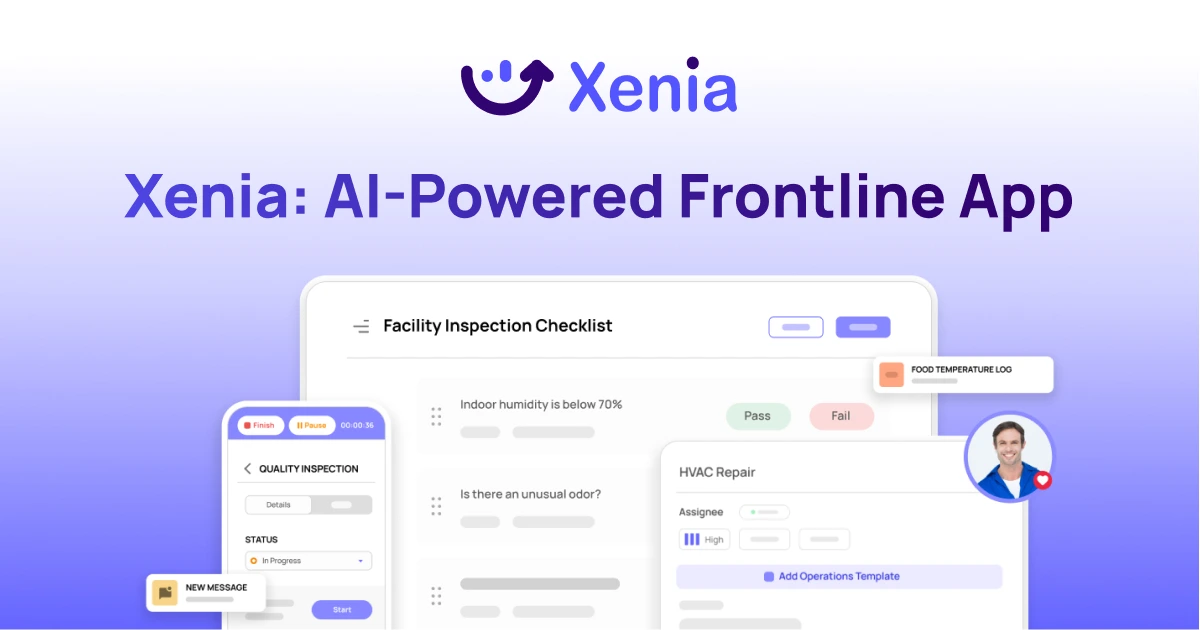
A Modern, AI-Powered Platform Built Specifically for Frontline Operations
Xenia brings daily operations, maintenance, audits, and compliance into one mobile-first platform. Frontline teams execute work consistently across locations while leadership gets real-time visibility.
Why Multi-Location Operators Choose Xenia:
🤖 AI-Powered Operations, Create digital checklists instantly or convert paper forms with AI. Verify compliance automatically with photo analysis and get instant answers from your operational data.
✅ Daily Operations & Maintenance, Assign work across hundreds of locations in minutes. Report and route issues instantly. Schedule preventive maintenance to catch problems before downtime.
📊 Real-Time Visibility, Track completion, work orders, and performance across all locations through dashboards. Filter by site or asset to spot trends and take action.
Manage operations, maintenance, and compliance across all your locations from one platform

.svg)
.webp)
%201%20(1).webp)

.svg)
%201%20(2).webp)